
Java for Beginners – My Unsuccessful Book Proposal
One of the tasks I set for myself when I retired from the classroom in June 2021 from Dawson College was to write a book that taught Java to absolute beginners. While there are many great books out there I felt that many perpetuated an approach that has not changed since Java 1.0. I had already spoken with two publishers who both were interested in what I might do. I did once write a book in the 1980s. It was an instructional manual on using the spreadsheet program Lotus 1-2-3 for a school that trained office workers.
Rather than enter into a formal arrangement with the publishers I proposed writing one chapter that they could review. This way they could determine if what I wanted to write was publishable and if not then not too much time was going to be wasted by them. What follows is what I presented to them. One of the publishers very politely said no, they already had a very successful beginners book and did not feel another book of this type was what they were looking for. I never heard back from the other publisher.
I will continue to write the book. Chapter 3 will be titled Boxes and it will be about variables and memory. Take a look, let me know what you think. Just be gentle.
Possible Titles
Java as Your First Programming Language* Featuring absolutely no code to download, you type it all in yourself!
You know the difference between a Mouse and Keyboard, now it is time to learn Java.
Java Programming for the Passionate The First Path to Becoming a Java Programmer
Not very good, are they. Here is where I thought the publisher could help with a better title.
Chapter 1 Notes
The sample chapter I decided to submit is Chapter 2. I did this because I foresaw Chapter 1 as a place to discuss the concepts and terminology used in subsequent chapters. Here is what I sent to the publishers about chapter 1.
As I wrote chapter two, I recognized concepts I needed to explain in chapter one. Therefore, chapter one may be the last chapter I write.
- Discuss ordinal and cardinal.
- Folder organization.
- Java installation.
- Text editor.
- Console / terminal
- Conventions versus Rule: Convention means a practice used by most programmers but for which there is no rule, and you cannot get it wrong.
- Compile, execute: javac, java
- Classes versus objects
- Parameter versus argument.
- Runtime and compile time
- IDE
- JVM
- Bytecode
- Syntax
- Algorithm
- Set up working environment
Chapter 2 – The worst program you must write, HelloWorld.java
Here we go, what follows is what I submitted. Hopefully the transfer from Word to WordPress worked.
In chapter 1 we looked at some basic programming concepts and learned about the tooling we needed to write programs in Java. Now it is time to write and run your first program. There is a tradition surrounding the first program you write. This is the origin of Hello World.
The Hello World program performs one simple task, it displays in a console or terminal window the phrase Hello World. Its initial purpose was to allow a developer to get a quick sense of how different programming languages perform this simple task. It has also launched many a programmer in the wrong direction by inadvertently giving them the belief that that this is the model to follow from here on in. That will not happen in this book. Here you will learn how to write a Hello World professionally.
Let us begin by entering the following code and then executing it. I want you to work with a simple text editor and run the code from the command line. Please do not use an IDE. Open your text editor and enter the following, letter for letter. You must be precise as the only reason this little program will not run is if you made a typing error.
Here is the code:
public class HelloWorld {

    public void perform() {
        System.out.println("Hello World");
    }

    public static void main(String... args) {
        new HelloWorld().perform();
    }

}
The Java language does not care how many spaces you use when you indent[1] code. Indenting is not a rule and is not mandatory. We indent based on convention. Most coders set their editor to insert 4 spaces when the Tab key is pressed. You could also just use a normal Tab that will insert the ASCII code 09 in the text. Java is fine with the tab characters and characterizes it as a whitespace character. The reason we want spaces in our code rather than a tab character is so that the code will appear the same in any text editor you use. There is no universal agreement on how many spaces a Tab is expected to insert when the Tab character is used in an editor or word processor. Using space characters, ASCII code 32, ensures that your source code will look the same in any editor you use.
I will just wait here while you type this in.
Once you have completed entering the code and have checked for spelling mistakes you are ready to save the file. Use the File Save command in your editor and save it to C:\dev\chapter1\ (Win) or /home/dev/chapter1/ (Mac, Linux) with the name HelloWorld.java. You are free to create any folders with any name, but the file name must be the same as the name that follows public class, HelloWorld. You add the suffix .java so that the Java program can recognize files it can work with.
In the Java language a file must contain one public class. A class is a structure into which we can declare data in the form of variables and actions in the form of methods, sometimes also called functions or procedures. Looking at the source code we can identify the public class HelloWorld and the two methods main and perform.
Time to run this program. We will be taking advantage of Java’s Single File Source Code feature. This is an excellent approach to learning the basics of the language without requiring you to also learn how to use an integrated development environment, IDE, such as NetBeans, Eclipse, or IntelliJ. We will use these tools later in this book.
Open a command or console on your computer. Navigate to the folder that holds the program. Enter dir or ls to view the directory of the folder and verify that HelloWorld.java is there. Once in the folder you can run the program as shown in this screen capture. Here is how this is done in Windows.
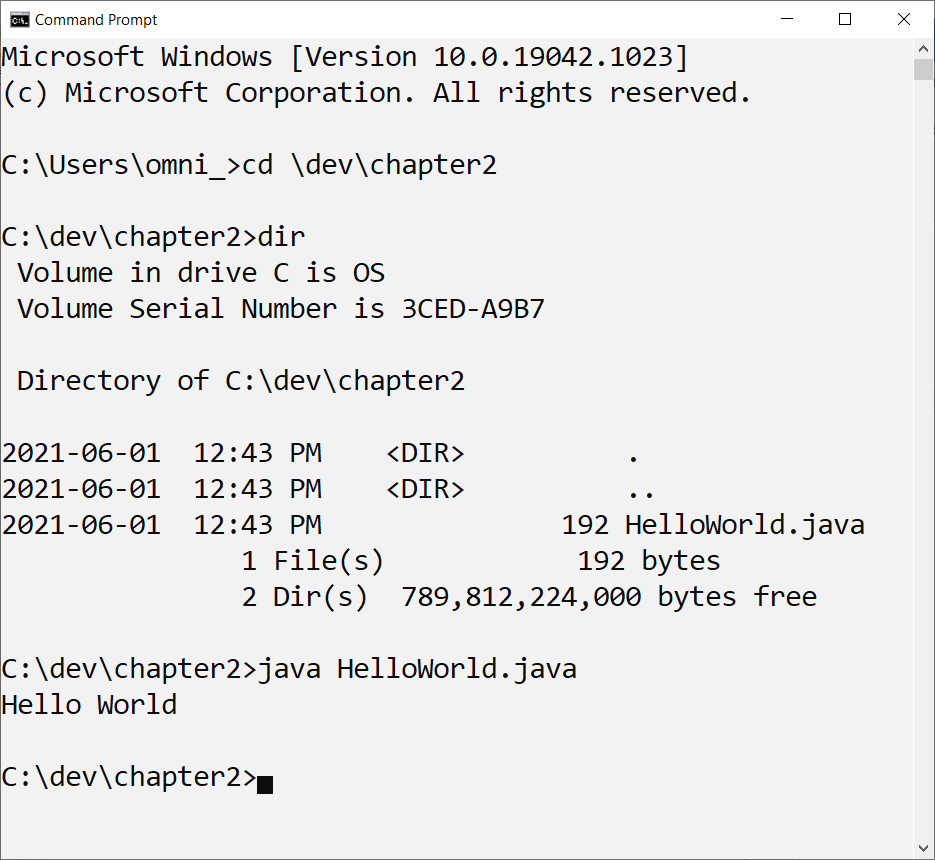
The command to run your code is java HelloWorld.java. This will only work if your program consists of just a single file. What this will look like may be different on your computer. Regardless of whether you use a Win, Mac, or Linux computer the outcome, the printing in the console or terminal of Hello World, will be the same. If it does not work because you have a message telling you that java cannot be found then go back to chapter 1 and review the section on installing the Java SDK.
Let us examine what the different parts of this code are and how we can use them. This will be a brief summary and more details will be discussed in later chapters.
public class HelloWorld {As already pointed out, every Java source code file must have a class structure. There can be more than one class structure in a file but only one of these structures must be described as public. The keyword public describes access control and is an important feature of object-oriented languages. For now, all we need to be aware of is that public access control means that there are no restrictions to using this code. Other access control types will come up in later chapters.
    public void perform() {
        System.out.println("Hello World");
    }
This is the method perform. Methods can optionally receive information and/or return a result. This method does not expect any information to be sent in as its parenthesis found after perform are left empty.
Methods can behave similarly to a mathematical function and return an answer or result. If we write 4 + 3 we say that it will return the answer 7. Programming languages allow you to construct methods that do or do not return a result. The keyword void in front of the method name tells us that this method does not return a result. It does perform an action, displaying the string Hello World on your console or terminal display.
The code System.out.println tells us that we require our program to display whatever is found in the parenthesis that follows println. If we did not place anything in the parenthesis then the cursor advances to the next line. As we are displaying a string, the cursor will advance to the next line after displaying the string. The preceding two words, System and out, identify from which Java library the method println comes from. The Java SDK that you installed comes with a wide range of libraries that you can take advantage of in any program that you write.
    public static void main(String... args) {
        new HelloWorld().perform();
    }
This second method in this class is main. Every desktop application that you write must have a main method. Java applications that run on web servers do not have a main. When we run a desktop Java program, the Java runtime will locate the main method and begin executing the program with whatever instructions it finds in this method.
There are three words in front of main. They are public that we already know is something called access control. The second word is static and this is a description of how this code is managed in the computer’s memory. The last word is void. This tells us that when the actions in the main method are carried out, there is no value or result that comes about from the actions.
Then there are the parenthesis containing String… args. This is called the method parameter. Using this type of syntax means that we can call upon this method with zero or more arguments as strings. The main method must have String… args or its alternate syntax String[] args. There can only be this one mandatory parameter, no fewer or no more. As it is the main method, all arguments come from the command line where the program is executed from.
In object-oriented Java we must command the language to set aside memory for classes that now become objects. That is the purpose of new. This is followed by the name of the class, HelloWorld, we want to create. It ends with the method, perform, that we want to run when the program is ready to execute.
As you learn Java you will see many examples online and in books that do more in the main method than any example in this book. While using the main method to try out code is common, it is wrong to do. The main method’s job should be to create the first object and then transfer control to it. Anything more will set you on the wrong path.
As already presented, to run this program enter java HelloWorld.java. In a Windows, Linux, or Mac console. This command to run this program is the same on every operating system.
C:\dev\chapter2>java HelloWorld.java
Hello World
The first thing that happens when we enter this at the command line is that this source code file is loaded into memory and checked for syntax errors. Errors could be the result of typing errors, the most common reason. Errors can also be the result of using code in a way that is not permitted. Once the source code is found fault free, it is translated thru a process called compiling to create a bytecode class file. This bytecode file is executed when it is loaded into the Java Virtual Machine. While this is normally a two-step process, we are taking advantage of Single File Source Code to perform these two required actions in one step. Using the one step approach does not create a .class file on disk, only in memory so do not bother to look for it now. We will see it later in this book.
If we wanted to use the two-step process to compile and execute our code it would look like this.
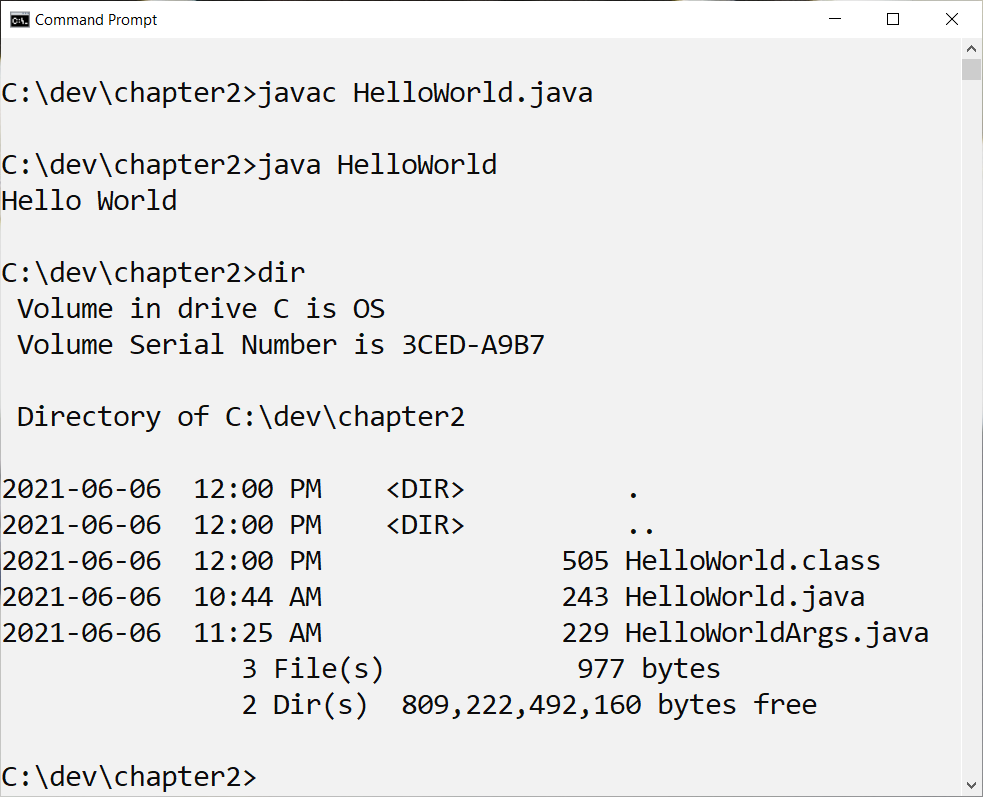
In the two-step approach we first use the Java compiler tool javac. This will create a new file with the .class suffix. If this has executed successfully then we can run the program with the java command. You do not use the suffix .class when you run the class file. Try it as java HelloWorld.class and take note of what happens.
Parameters and Arguments
Let us see how parameters and arguments work by making some minor changes to the code. Remember, a parameter is a declaration that indicates that a method is expecting some information in the parenthesis of a method. An argument is the information that is sent, commonly called passed, to the method. It is not unusual to learn that some developers and even authors confuse argument with parameter. Many developers consider the words synonymous so should you get their meaning reversed then no one will correct you.
We will change the name of the class and so will also need to save this change into a new file with the new class name.
public class HelloWorldArgs {

	public void perform(String... args) {
		System.out.println("Hello World " + args[0]);
	}

        public static void main(String... args) {
		new HelloWorldArgs().perform(args);
	}
}
I will wait here while you make the changes.
As already pointed out, the main method should only be used to start a program. It should not participate for any other reason. As we want to display the arguments that will be passed to the parameter, we must modify perform so that it can receive the args first received by main.
The arguments that the perform method can use are in the form of a list of strings. This is what String… args mean. As a list we need to differentiate between the first, second, third, and more, positions. We do this by using subscripts, numbers inside square brackets. These numbers are ordinal and, as we have seen in chapter one, ordinal numbers in software development begin at zero.
In the println method the first new component is the plus (+) symbol. The plus symbol means concatenate[2] when used with Strings. With this knowledge we can recognize that what will be printed is the string Hello World followed by the first argument args[0].
When we run, it will look like:
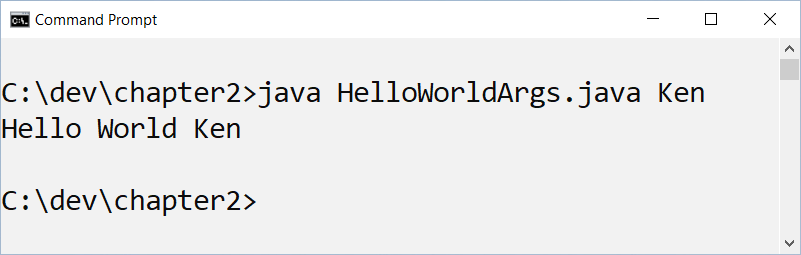
Notice that my first name has been entered after the name of the java source file. This word is delivered to the list of strings we named args. Try adding additional names such as:
java HelloWorldArgs.java Ken Bob
What do you suspect may happen? I always believe that before you ever run any code you must first predict what will be the outcome of running the code. When running it with two names this is what I get.
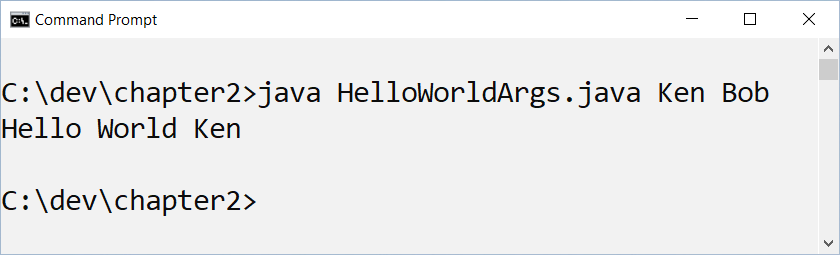
What happened to Bob? Bob is the second name in the list, but we only show the first one, Ken. You will explore this and solve it by going through the exercises in the next section.
Hands On
Now it is your turn. I want you to change the code. Before you change the code, write down your prediction and after it runs write down what happened. I want you to predict what will happen before you run it.
Make the following modifications. Sometimes it will work, sometimes nothing happens, and sometimes you get an error message, called a stack trace, from Java. Do not use an IDE, only a plain text editor. Record what happens and when you get errors, try to explain why the error occurred.
- Have Bob as well as Ken appear in the output
- Run your code that uses arguments from the command line but do not pass any arguments.
- Using the version of this code that expects a single argument, args[0], pass as a parameter numbers and pass as a parameter punctuation symbols. What happens?
- What happens if you use this sentence as the argument?
- Change the name of the file HelloWorld.java to WorldHello.java and run the code. What happens?
- Retore the original file name to HelloWorld.java and this time change public class HelloWorld to public class WorldHello and run the code. What happens?
- Misspell println as printlm and run your code. What happens?
There are many a meme that implies that being a programmer means you spend most of your day searching online for answers. This is not entirely true. As a programmer you will be confronted with new problems to solve every day, quite possibly every hour. Whatever education you took to become a developer was likely near obsolete when you graduated. This all means that searching for answers is a part of every developer’s daily routine. Experience does not mean you will eventually search less. Experience means that you know how to ask the right question so that you get the answer you are looking for on the first page of search results.
- Here is your first online search problem. With the version of your program that only displayed one name with args[0] you saw how any other names, such as Ken, did not appear. It is possible to have more than one word displayed in the output when you execute the program with just args[0]. Find how this can be done. Write out why this syntax you found online works while my example with two names did not.
[1] start (a line of text) or position (a block of text, table, etc.) further from the margin than the main part of the text
[2] link (things) together in a chain or series. “some words may be concatenated, such that certain sounds are omitted”